
Render smarter. Plan sharper.

free


Step 1 — Install & launch PixelAgent
Download PixelAgent, install it on your Master Machine (the system that handles your render jobs), and launch it. Sync starts automatically.

Step 2 — Watch the sync (optional)
Open the Transfers window to see what PixelAgent is syncing in real time.

Step 3 — Copy your Farm ID
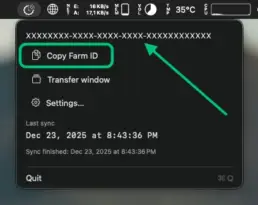
Click Copy Farm ID in the PixelAgent menu bar and paste it PixelTime. Go to Farm, tap the Settings gear (top right), select which render manager you use, paste the Farm ID, then tap Add Render Farm.

Step 4 — Done: jobs & engines sync
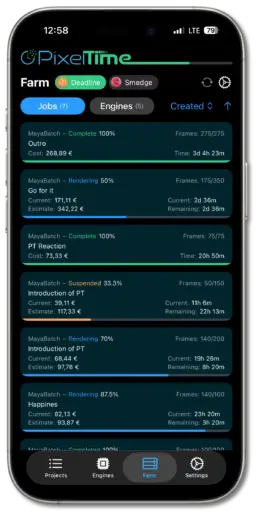
Close settings and PixelTime starts syncing your farm.

Designed to be safe by default.
- Read-only approach: PixelAgent does not modify jobs, engines, or your farm configuration.
- Minimal export: Only status + timing + engine metadata required for monitoring and calculation.
- Separation by design: Sync output is stored separately and can be cleared anytime via Remove Sync Data.
Treat the Farm ID like an access token. Only share it with people/devices you want to connect.
Jedes Produkt stellt eigene Anforderungen
In einem kurzen Gespräch klären wir Ziel, Datenlage und Aufwand – transparent und realistisch.